

BasePlan.Ai user guide
From the structural plans to issued formwork sheets, step by step.
Updated 25 October 2026
01Getting started
BasePlan.Ai reads the structural plans of a project, finds every level and slab, lays out the shoring and checks it against the standard. It delivers DWG and PDF sheets, a calculation report and a bill of quantities. You stay in control of every decision: the system asks where the plans leave a gap and waits for your approval before it plans.
- Open the system and choose Register. Enter your name, your e-mail and a password of at least 10 characters, then confirm your e-mail from the message you receive.
- Open your company. The company is the account: its projects, users, plan and credits are shared by everyone in it.
- Sign in. For a company administrator we recommend turning on two-step verification under My account.
A new company receives starting credits once, so the first project can run before you choose a plan.
↑ Back to the top02The screen
The menu on the side opens your projects, the history and, for administrators, the users and the company profile. Your company's logo and name are at the top of the menu; the BasePlan.Ai mark is in the far top corner.
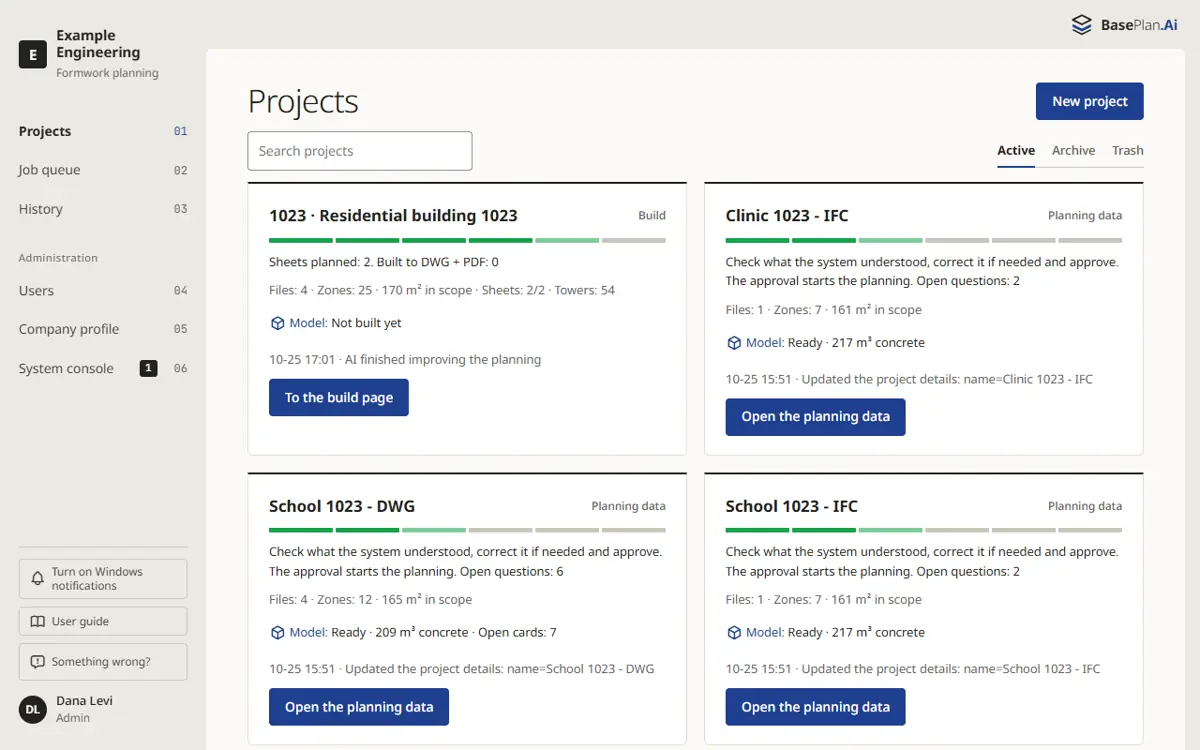
Each project card shows where the project stands: the bar under its name has one segment per step, the done steps in green and the current one lighter. The button on the card opens the next thing to do.
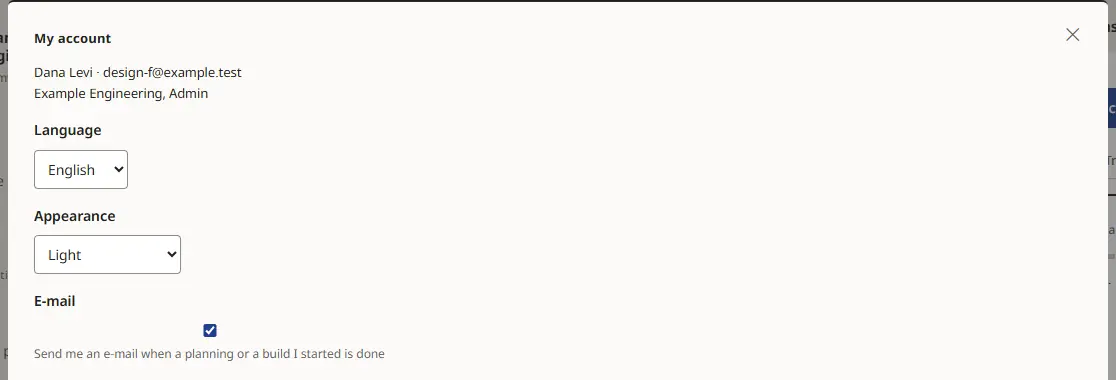
Under My account (your name at the foot of the menu) you choose the language of your screens and the appearance: light, dark or as my computer.
03A new project and the plan package
- Choose New project and give it a name. A number, a city and a client can be added in the project settings.
- Drag the plan package into the upload area, or choose files or a folder. DWG, DXF, vector PDF, IFC and Revit (RVT) files are read, also inside a ZIP file.
- Choose Read package. The system reads every file, finds the levels, the slabs and their thicknesses, and shows its progress in the log.
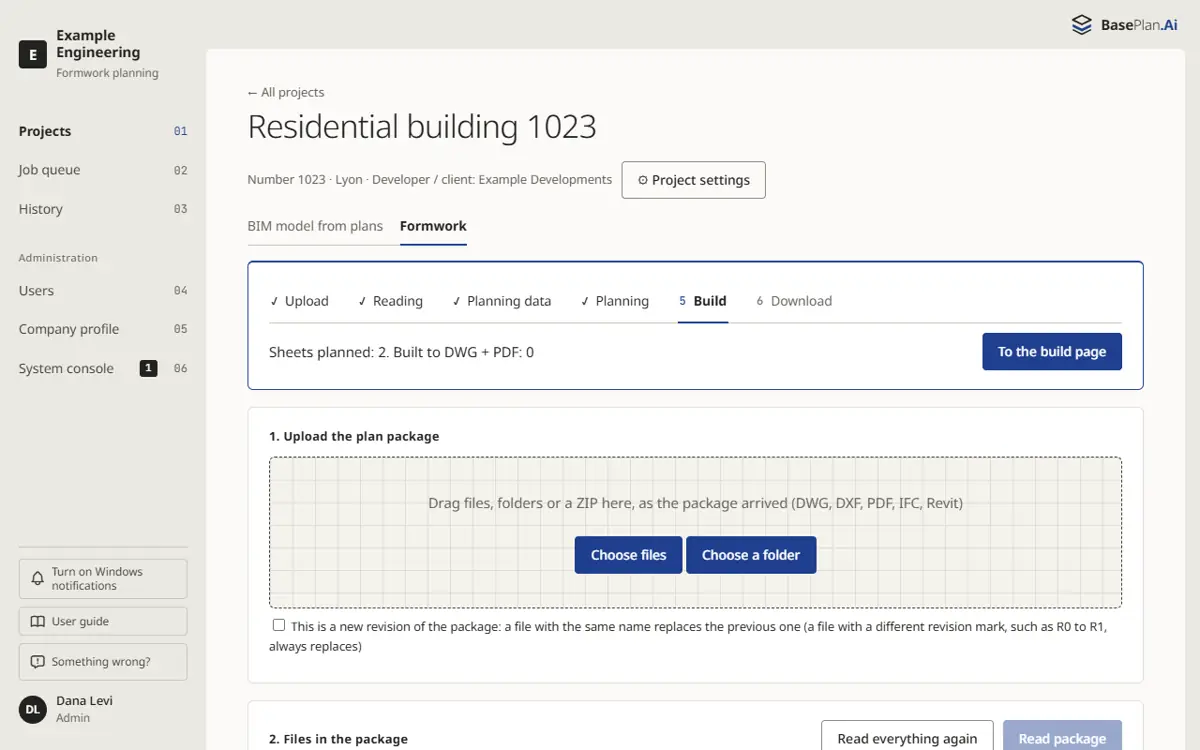
A new revision of the package is uploaded the same way. Mark that it is a new revision: a file with the same name replaces the previous one, and only the sheets the change touches are planned again.
A scanned PDF (a picture of a drawing) cannot be read. Use the drawing's DWG or a vector PDF exported from the drawing program.
↑ Back to the top04Planning data: check and approve
The planning data page shows what the system understood: every planning zone with its level, slab thickness D, clear height H and what is under it. A small coloured dot next to each value tells where it came from: read from the plans, measured, assumed, or corrected by hand.
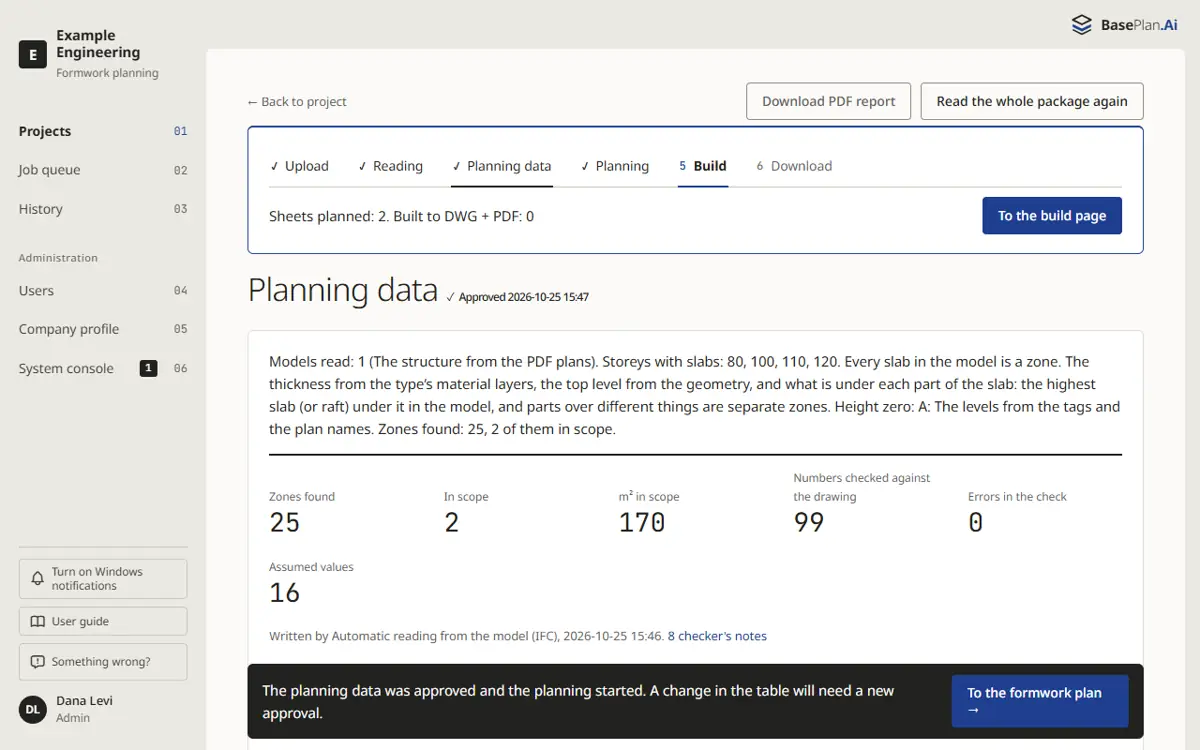
Start with What to check first: the decisions that change the most area. Then go over the questions under Understanding the building. Each question shows the place in the plan, what the system knows and its recommendation; accept it or choose another answer.
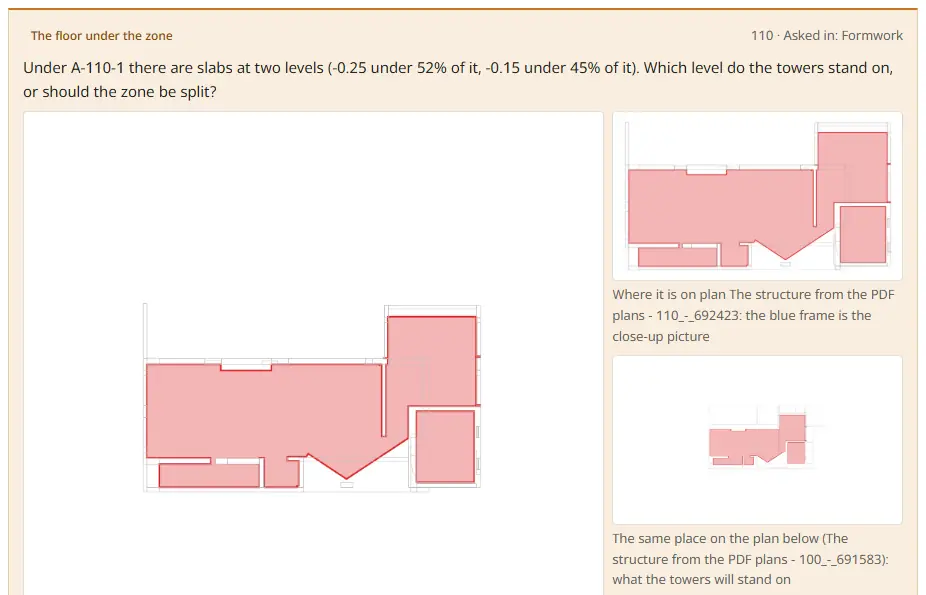
Under Scope: what to plan you choose which slabs are planned: the proposed ones (double-height voids, high or thick slabs) or all cast slabs. A single zone can be added or removed in the table.
- Correct any value in the table that does not match the plans. A corrected value is marked as corrected by hand.
- When everything looks right, choose Approve and continue to planning. One approval, and the planning continues automatically.
05The formwork plan
After the approval the system plans every sheet: the towers or props, the primary and secondary H20 beams, the openings and the details, checked against the standard of the project. Many layout alternatives run in parallel and the best one is chosen.
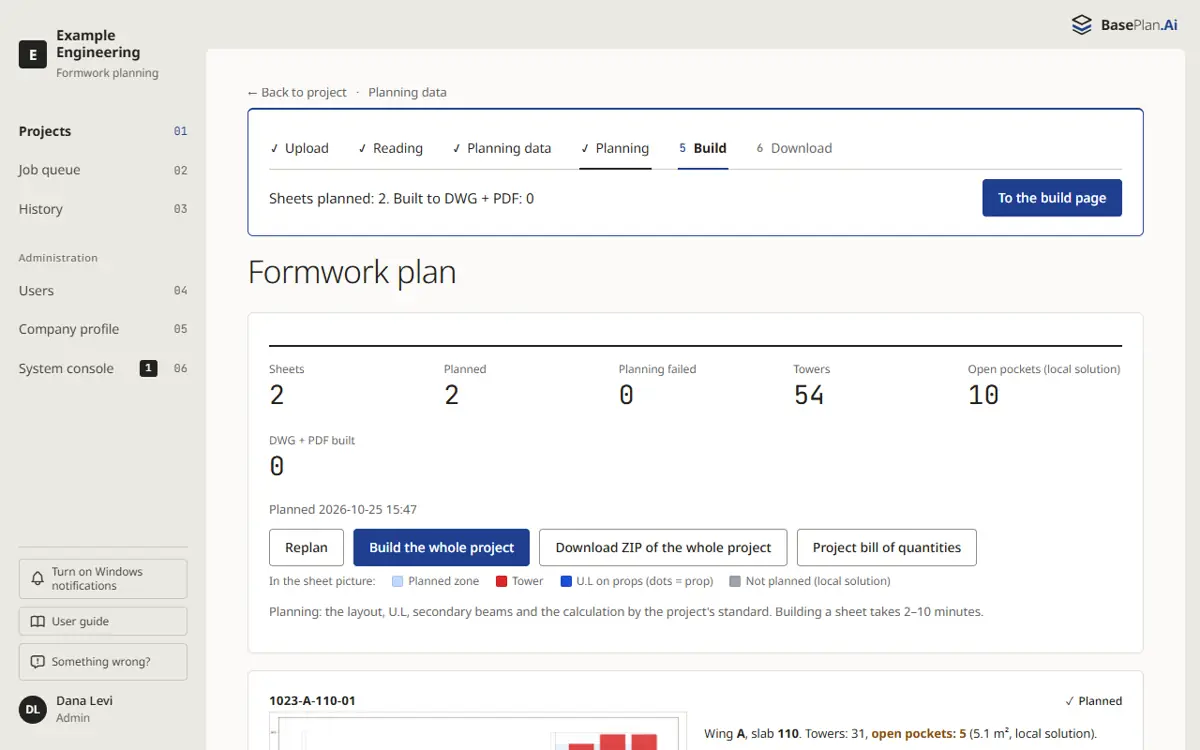
Every sheet shows its picture, its zones and its warnings, with the calculation report (PDF and Excel) and the bill of quantities. Compare alternatives shows the other layouts that were checked; Settings and replanning changes the sheet's own settings and plans it again.
The title block of every sheet comes from the system: the company details from the company profile, the project details from the project settings and the planner from his account.
↑ Back to the top06Build: DWG and PDF sheets
- Open the build page from the project's steps.
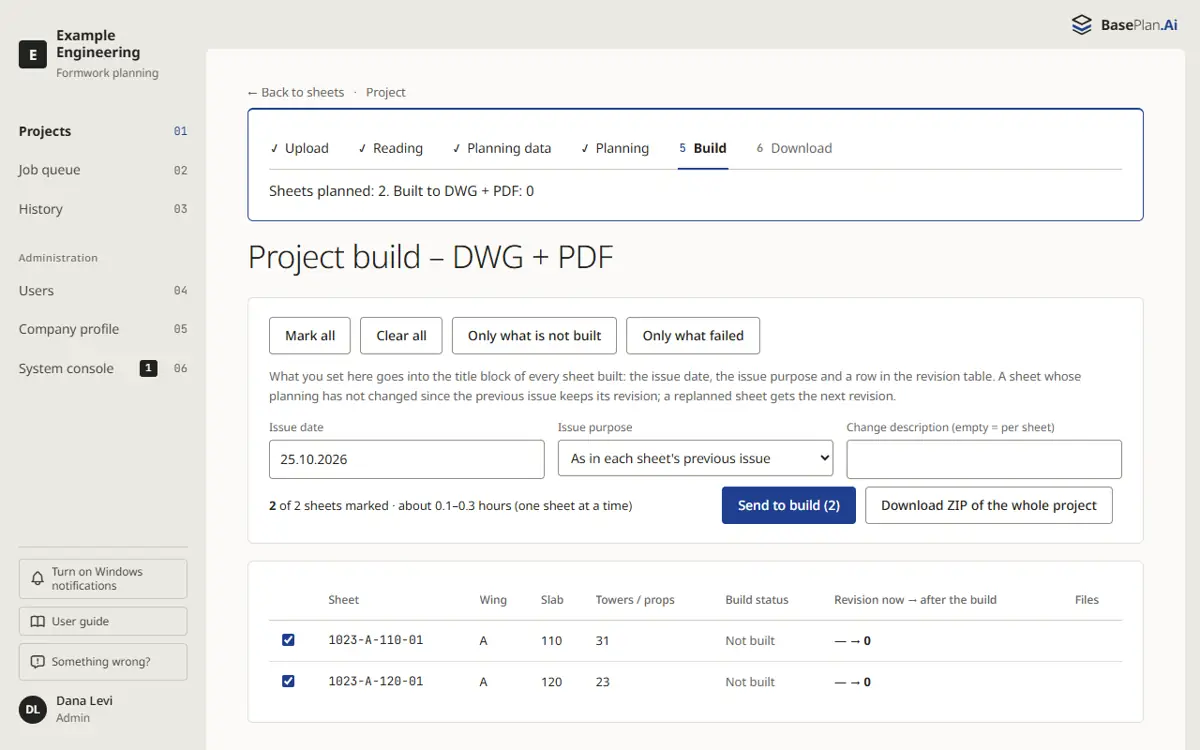
- Mark the sheets to build and choose Send to build. The sheets are drawn as DWG and PDF; the page shows the progress of the run.
- A sheet that has not changed keeps its revision. Stop the build stops what has not started yet.
07Download
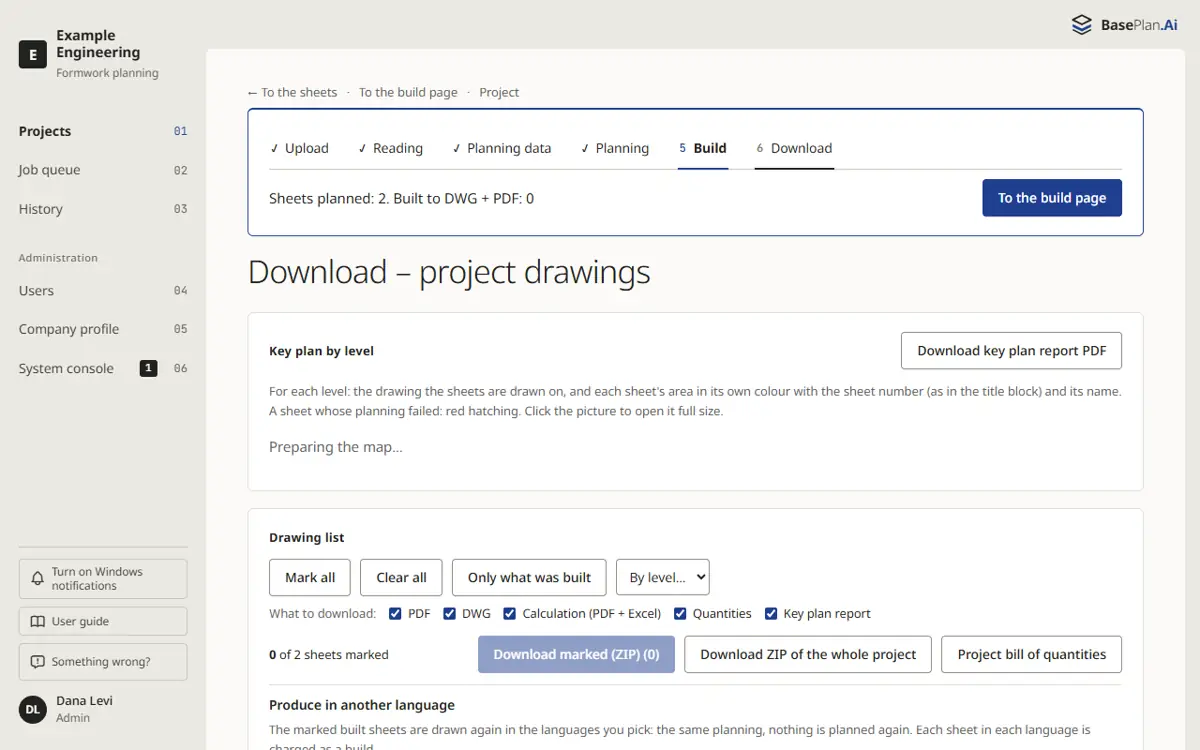
The download page shows a map of the sheets for every level, so you can see which sheet covers which part of the plan. Mark the sheets you need, or a whole level, and choose Download marked (ZIP). Download all (ZIP) takes the whole project.
08BIM model from plans
When your company has the BIM model product, the project has a tab of its own for it. From the same plans the system builds a 3D model of the structure: slabs, walls, columns, beams and footings, with an IFC file, a Revit file, quantities in Excel and an AI review of what the plans leave open.
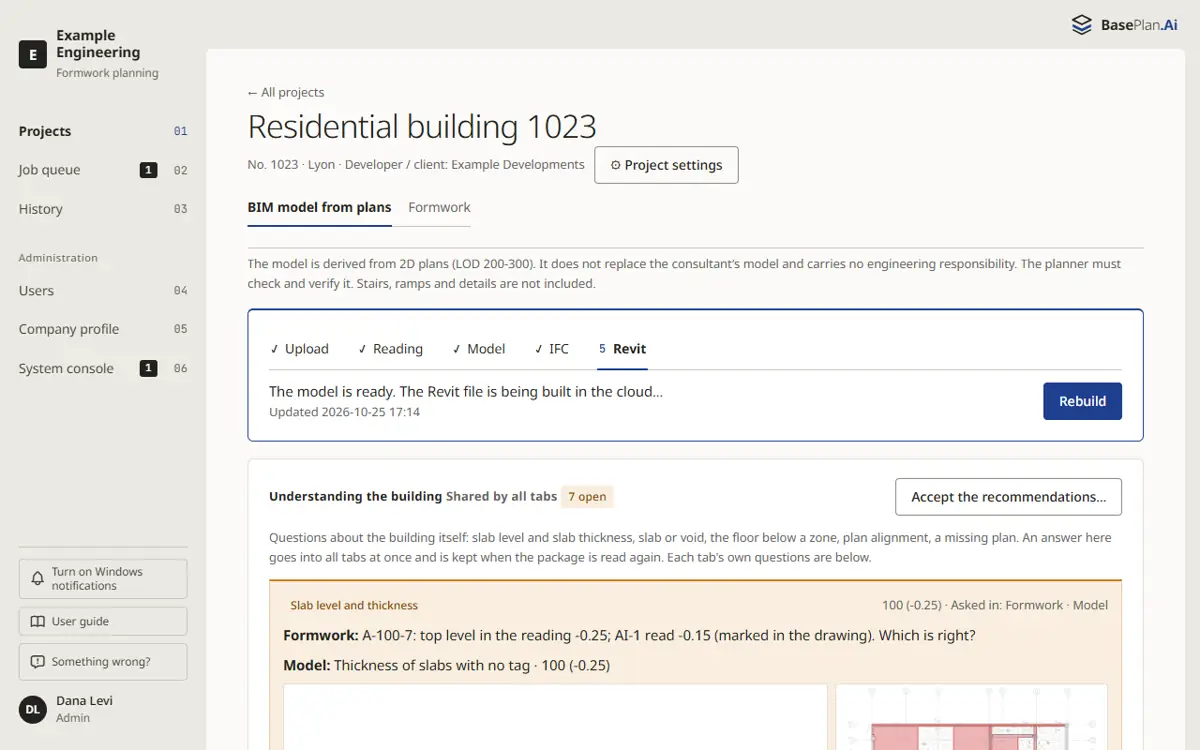
The open points of the model are shown as cards; answer them and the model is updated. The 3D view can be turned, cut and measured, and every element shows its data.
↑ Back to the top09Credits and plans
Credits measure the work a run does: reading the plans, the layout and its checks, building the sheets or the model. All the users of the company use the same credits. Before any run starts, the screen shows how many credits it will take; the run is charged what it actually used.
Every plan gives credits each month, and extra credits can be bought at any time; extra credits never expire. When the credits run out, the work stops before the next paid step, tells you, and goes on by itself after a purchase.
↑ Back to the top10Users and the company profile
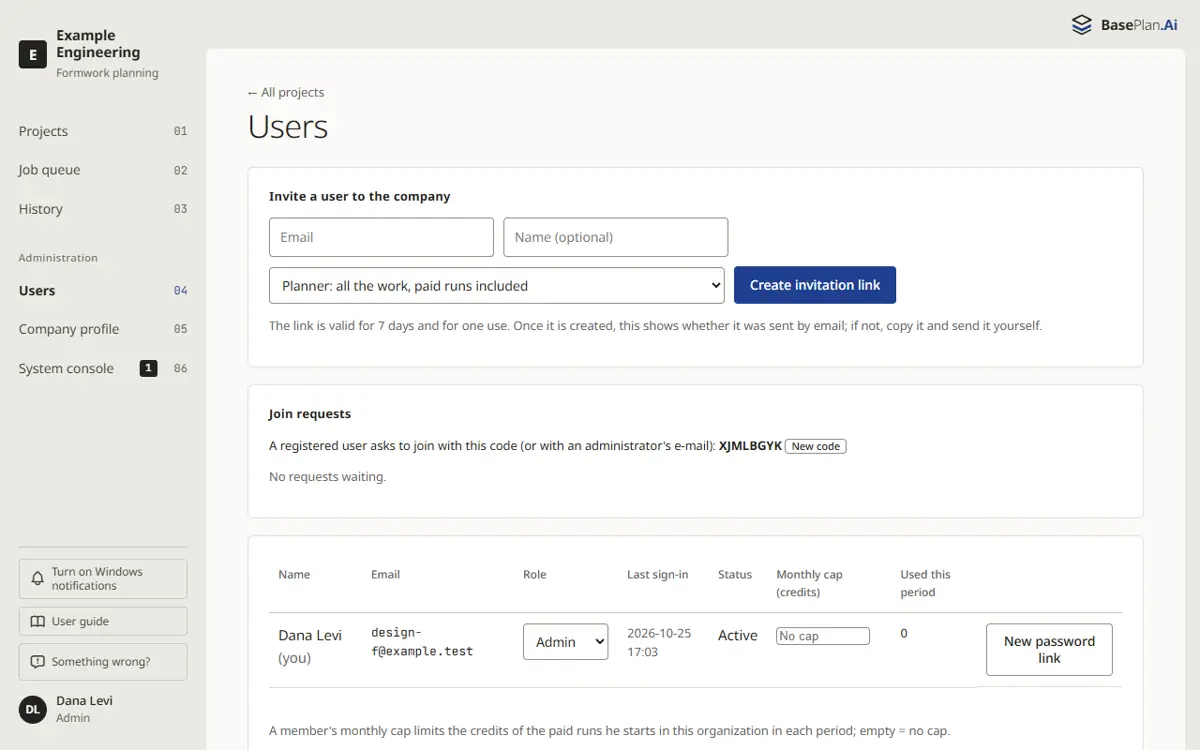
An administrator invites users under Users and gives each one a role: an administrator manages the company, a planner does all the work including the paid runs, and a viewer sees and downloads the projects without changing them.
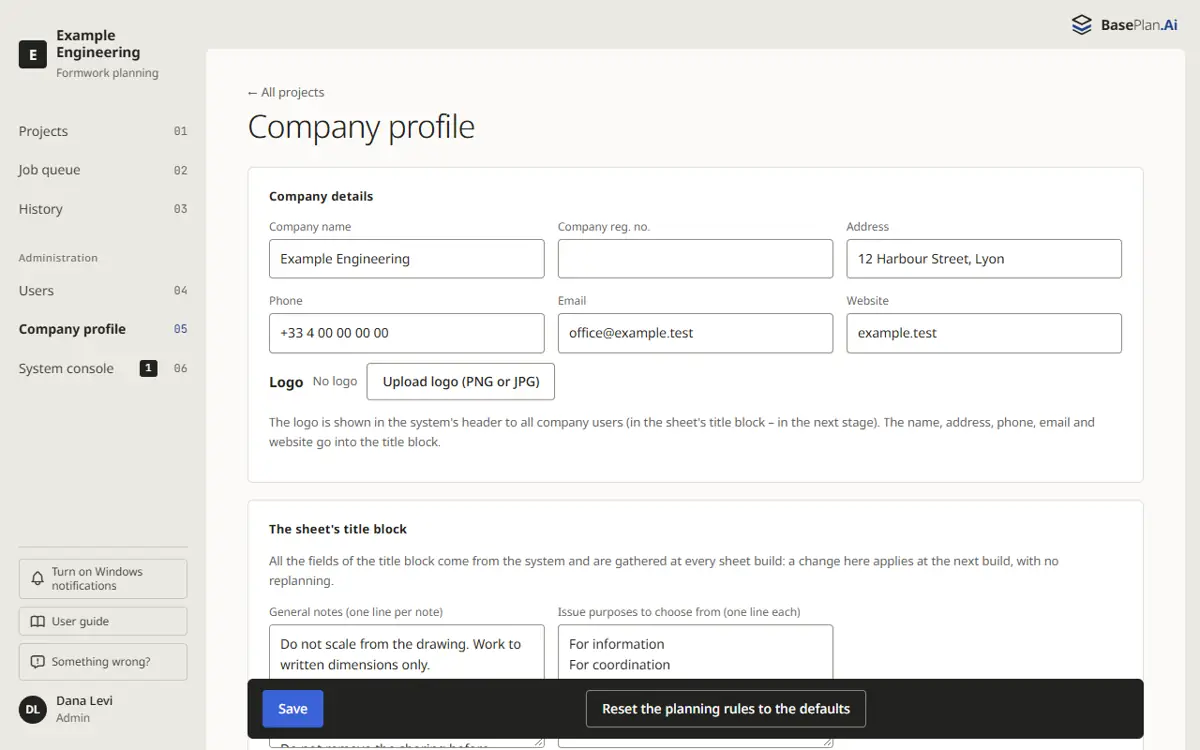
The company profile holds the company details and logo for the title block, the title block fields and the planning rules of the company: the standard, the towers and their order, the spacings, the H20 stock lengths and more. A new project starts from these rules.
11History and help
History lists who did what and when, in every project of the company.
Something wrong? at the foot of the menu sends a message, with the screen you are on, to the BasePlan.Ai team. A problem in a file comes back to you with what to fix; a problem of the system goes to the development team with the details.
BasePlan.Ai is a design aid. Every plan, drawing, calculation and quantity is a proposal that the planner checks and approves before any use.
↑ Back to the top